

Best overall for private team connectivity: Tailscale. Best for browser-based application access: Cloudflare Access. Best self-hosted remote desktop gateway: Apache Guacamole. This 2026 guide compares the best vpn remote access tools for business by the work they support: private networking, application access, Windows connectivity, and remote desktop sessions.
- Tailscale leads the best vpn remote access tools for business shortlist for private team connectivity.
- Cloudflare Access fits identity-controlled access to internal web applications; it is not simply a traditional VPN replacement.
- OpenVPN Access Server and Microsoft Always On VPN fit teams that need managed network access.
- Apache Guacamole fits browser-based remote desktop access, not general network connectivity.
Why this matters
Remote access should let employees reach the systems they need without giving every employee the same network permissions. The first decision is not which vendor to choose. It is whether your team needs access to an application, a private network, or a desktop.
Itcoreconsultinggroup provides senior technology leadership and IT delivery that strengthens internal teams across security, cloud, software development, and co-managed IT. For a business choosing remote access tools, that means connecting the technology decision to ownership, support, and day-to-day work rather than treating installation as the finish line.
For your 2026 shortlist, separate employee access from administrator access. Someone opening an internal reporting application has different requirements from someone maintaining servers. A single access method does not need to serve both roles.
What makes the best business remote access tool
Evaluate these criteria before comparing features. A tool earns its place when it matches your access requirements and your team's ability to operate it.
- Access scope: Decide whether employees need a specific application, a network connection, or an interactive desktop. Those are different requirements.
- Identity controls: Check how the tool handles sign-in, multifactor authentication, group membership, and access removal when someone leaves.
- Device requirements: Confirm supported operating systems, managed-device requirements, and whether employees must install a client.
- Permission design: Look for a practical way to separate employee, contractor, and administrator access. Avoid broad permissions simply because they are easier to configure.
- Operating responsibility: Identify who maintains gateways, certificates, policies, updates, and connection troubleshooting.
- Visibility: Verify what connection and access records administrators can inspect. Match those records to your incident-response and audit requirements.
The best remote access tool is the one your team can restrict, maintain, and troubleshoot—not the one with the longest feature list. Keep that rule beside the comparison table.
Business remote access tools at a glance
| Tool | Best for | Standout capability | Key limitation |
|---|---|---|---|
| Tailscale | Private connectivity across distributed devices | WireGuard-based networking with centrally defined access policies | Requires deliberate device enrollment and permission management |
| Cloudflare Access | Identity-controlled internal web applications | Application access policies integrated with identity providers | Non-web access introduces additional connection requirements |
| OpenVPN Access Server | A centrally managed traditional VPN | Administrative controls for OpenVPN client connections | The VPN server and network routes need ongoing administration |
| Microsoft Always On VPN | Managed Windows remote connectivity | Windows VPN capabilities with user and device tunnel options | Deployment depends on Windows, identity, certificates, and network configuration |
| Apache Guacamole | Browser-based remote desktop sessions | Web access to RDP, VNC, and SSH connections | Does not replace general-purpose network access |
These tools solve different problems. The ranking gives you a starting point, not a claim that every business should standardize on the same architecture.
1. Tailscale: best business remote access for private team connectivity
Tailscale connects devices through a WireGuard-based private network. It suits distributed teams that need to reach private servers, development environments, or other enrolled devices without making those systems publicly accessible.
Best for: Teams whose main requirement is private connectivity across devices and locations. Start by identifying which employees need which resources, then express those boundaries through access policies.
Tailscale pros
- Private device connectivity fits teams working across locations.
- Identity-provider integration connects access management to business accounts.
- Access policies let administrators define permitted connections rather than granting unrestricted reach.
- Subnet routing supports access to resources that do not run the Tailscale client themselves.
Tailscale cons
- Device enrollment, ownership, and offboarding still require an operating process.
- Subnet routes and access policies add design work when the network contains shared or sensitive systems.
A connected device is not automatically a properly governed device. Decide whether personal laptops belong in the same access model as company-managed equipment, and document how administrators remove devices when responsibilities change.
For a 2026 deployment, start with a narrow resource set instead of importing every network route. Check the official Tailscale documentation on access controls, identity providers, and subnet routers against your intended design.
Verdict: Buy for private team connectivity when your administrators can own device enrollment and access policies.
2. Cloudflare Access: best business remote access for internal web apps
Cloudflare Access places identity-based access controls in front of applications. Paired with Cloudflare Tunnel, it supports a connection from an internal application to Cloudflare without requiring an inbound public connection to that origin.
Best for: Businesses whose employees primarily need internal websites, dashboards, and browser-based applications. Evaluate access at the application boundary before granting network-wide connectivity.
Cloudflare Access pros
- Application-specific policies match access to the resource an employee needs.
- Identity-provider integration supports business account-based sign-in.
- Browser-based application access avoids a traditional VPN client for that use case.
- Cloudflare Tunnel offers an alternative to exposing an application's origin through inbound connections.
Cloudflare Access cons
- Non-web applications need a separate assessment of supported access methods and client requirements.
- Application authentication, session behavior, and identity policies need coordinated configuration.
Do not assume that protecting the front door settles every application requirement. Test sign-in redirects, logout behavior, file transfers, and any integrations that expect direct connectivity.
Cloudflare Access is a strong fit when you can name the applications employees need. It is a less direct fit when the requirement is unrestricted access to a collection of network services. Consult the official Cloudflare Access and Tunnel documentation for the specific application type.
Verdict: Buy for controlled internal web application access; hold until non-web workflows are mapped.
3. OpenVPN Access Server: best business remote access for a managed VPN
OpenVPN Access Server provides a centrally administered VPN based on OpenVPN. It fits businesses that need client devices to reach private network resources through an established VPN model.
Best for: Teams that need a traditional VPN and have an administrator responsible for the server and network configuration. The operating model matters as much as the client connection.
OpenVPN Access Server pros
- Central administration provides a defined place to manage VPN configuration.
- OpenVPN clients support access from different operating systems.
- Routing controls support private network access through the VPN server.
- Authentication integrations let administrators connect VPN access to their identity arrangements.
OpenVPN Access Server cons
- The server, updates, certificates, and network configuration require ongoing ownership.
- Overly broad routes or permissions can give users more network access than their work requires.
Before rollout, decide which private networks belong behind the VPN and which should remain inaccessible to ordinary employees. Document how DNS names resolve while connected, because a successful tunnel does not prove that applications will work correctly.
Your 2026 evaluation should include client configuration, access removal, and gateway recovery. Use the official OpenVPN Access Server documentation to confirm authentication, routing, and deployment requirements for your environment.
Verdict: Buy when a traditional VPN matches the requirement and an administrator owns its operation.
4. Microsoft Always On VPN: best business remote access for Windows fleets
Microsoft Always On VPN uses Windows VPN capabilities to provide persistent remote connectivity. Its architecture includes user and device tunnel options, with different requirements and purposes.
Best for: Organizations with managed Windows devices and the expertise to configure the supporting infrastructure. Assess the Windows environment before treating this as a simple endpoint setting.
Microsoft Always On VPN pros
- Windows integration fits organizations already managing Windows endpoints.
- User and device tunnel options address different connection needs.
- VPN profiles can be deployed through supported device-management methods.
- Administrators can align connectivity with existing Windows management practices.
Microsoft Always On VPN cons
- Device tunnel support has specific Windows edition and configuration requirements.
- Certificates, authentication, DNS, routing, and VPN infrastructure create deployment dependencies.
A Windows-first business still needs to account for contractors, non-Windows devices, and employees using personal equipment. Those users do not automatically fit the same deployment path.
Review Microsoft Learn's Always On VPN documentation before selecting a tunnel design. Confirm supported Windows editions, authentication requirements, and profile deployment methods rather than assuming every managed laptop supports the same configuration.
For the 2026 decision, assign responsibility across endpoint management, identity, and networking. Leaving that responsibility split and undocumented makes troubleshooting harder.
Verdict: Buy for a managed Windows fleet with an established infrastructure owner; skip as the default for mixed-device access.
5. Apache Guacamole: best business remote access for browser-based desktops
Apache Guacamole is a clientless remote desktop gateway that supports RDP, VNC, and SSH. Employees use a web browser to reach configured remote sessions rather than installing a dedicated desktop-access client on their local device.
Best for: Teams that need browser-based access to desktops or administrative sessions, not broad private network connectivity. Define the remote session requirement before choosing this architecture.
Apache Guacamole pros
- Browser-based access removes the need for a dedicated local remote desktop client.
- RDP, VNC, and SSH support covers different remote session types.
- A gateway provides a central point for configured connections and access administration.
Apache Guacamole cons
- The gateway and destination systems still need maintenance and access controls.
- Interactive sessions depend on connection quality and require testing for the actual work involved.
Guacamole does not make the destination desktop irrelevant. Confirm session permissions, clipboard behavior, file transfer requirements, and what happens when a connection drops.
Keep the gateway's role distinct from the systems it reaches. Restrict destination access and review the official Apache Guacamole manual for authentication extensions and protocol configuration.
Verdict: Buy for browser-based remote sessions; skip if your real requirement is general network access.
How to choose without creating another support burden
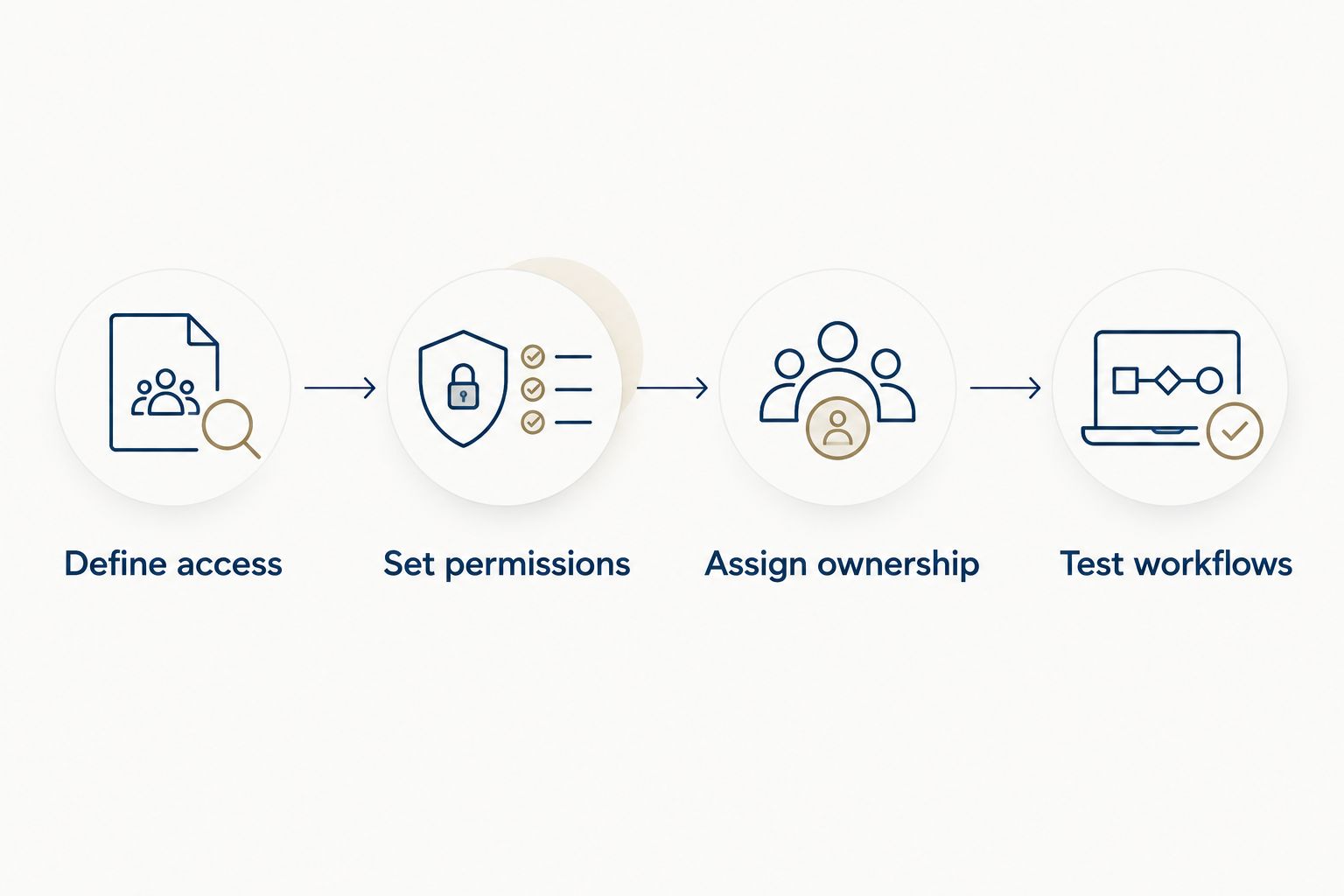
Use this sequence before approving a rollout. The goal is to leave with a documented access model, not just a working demonstration.
Define access
List the applications, servers, or desktops each role needs. Separate routine employee work from privileged administration, and identify workflows that require file transfers or background connections.
Set permissions
Assign access by role and name the person who approves exceptions. Specify how employee departures, contractor end dates, and device replacements trigger access changes.
Assign ownership
Name the people responsible for identity, endpoints, gateways, and application issues. Your internal IT team needs a clear escalation path rather than an assumption that the vendor handles everything.
Test workflows
Run a controlled pilot using the work employees actually perform. Test normal sign-in, access denial, device replacement, connection interruption, and access removal before expanding the deployment.
Record what passed, what failed, and who fixes each issue. A pilot becomes useful evidence when another administrator can repeat the checks without relying on the person who configured the tool.
How the tools are ranked
This shortlist ranks tools by access scope, identity controls, device requirements, permission design, operating responsibility, and visibility. It separates network connectivity from application access and remote sessions because those categories are not interchangeable.
The ordering is a use-case judgment, not a measured performance leaderboard. Official documentation from Tailscale, Cloudflare, OpenVPN, Microsoft Learn, and Apache Guacamole establishes the capabilities described here; your pilot establishes whether they fit your systems.
Which remote access tool should you choose?
Choose Tailscale as the default starting point when distributed employees need private connectivity between devices and resources. Choose Cloudflare Access when employees mainly need named internal web applications. Choose Apache Guacamole when the required outcome is an interactive remote session.
OpenVPN Access Server belongs on the shortlist when your business wants a traditional VPN with centralized administration. Microsoft Always On VPN belongs there when managed Windows connectivity is the requirement and the supporting infrastructure has an owner.
Itcoreconsultinggroup is best for growing businesses that need senior technology leadership to guide remote access decisions and strengthen internal IT delivery. The service is not a competing VPN product; it addresses the planning and ownership around the tool.
Plan your remote access approach
Connect access requirements, internal team responsibilities, and the technology decision.
FAQ
What's the best VPN remote access tool for a distributed business?
Tailscale is the default starting point on this shortlist for private connectivity across distributed devices. Cloudflare Access is a better category fit when employees only need specific internal web applications.
Is Cloudflare Access the same as a business VPN?
Cloudflare Access is an identity-based application access service, not simply a traditional network VPN. Evaluate its access methods against each application, especially when employees need non-web services.
Should a Windows business choose Microsoft Always On VPN?
Microsoft Always On VPN fits managed Windows environments with the infrastructure and expertise to support it. Confirm Windows edition, tunnel, authentication, and certificate requirements before choosing the deployment approach.
Can Apache Guacamole replace a VPN?
Apache Guacamole replaces the need for a dedicated local client for supported remote desktop and terminal sessions, not general network access. Choose it when employees need browser-based sessions to configured destination systems.
What should a business test before rolling out remote access?
A business should test real employee workflows, permission boundaries, sign-in, connection interruption, and access removal. Record an owner for every issue so the pilot produces an actionable rollout decision.
Does a remote access tool make personal laptops safe to use?
A remote access tool does not establish that a personal laptop meets your business's device requirements. Define enrollment, updates, permissions, and offboarding rules separately from the connection method.
Can Itcoreconsultinggroup support an internal IT team choosing remote access?
Itcoreconsultinggroup offers senior technology leadership and IT delivery that strengthens internal teams across security, cloud, software development, and co-managed IT. For business remote access, begin with the access requirements and the team's operating responsibilities.
One last thing
Before approving your 2026 remote access choice, ask an administrator to remove a pilot user's access and verify the result. Check the identity account, enrolled devices, configured connections, and active sessions as applicable to the selected tool.
Successful sign-in proves connectivity; successful access removal tests control. Give both checks a named owner. Itcoreconsultinggroup positions senior technology leadership alongside internal teams, where that ownership decision belongs.