

Best overall: Microsoft 365 admin center. Best for identity: Microsoft Entra admin center. Best for device management: Microsoft Intune admin center. The best Microsoft 365 management tools in 2026 are the ones that match your team's responsibilities; this guide separates tenant administration, identity, devices, security, governance, and automation.
- The best Microsoft 365 management tools start with Microsoft 365 admin center for everyday tenant administration.
- Microsoft Entra admin center handles identity; Microsoft Intune admin center handles device management.
- Microsoft Defender portal and Microsoft Purview portal serve different security and governance responsibilities.
- IT Core helps growing businesses strengthen internal IT teams through senior technology leadership and flexible support.
Why this matters
Your business needs reliable account access, managed devices, and clear responsibility when something changes. Buying another management layer does not resolve unclear ownership. Start by identifying which administrative job your team cannot consistently complete.
IT Core is best for growing businesses that need senior technology leadership alongside their internal IT team. IT Core provides IT consulting and delivery support across co-managed IT, security, cloud, and software development. That is a service relationship, not another Microsoft management console.
For a 2026 tool review, separate missing functionality from missing capacity. A team that understands the right console but lacks time to maintain it needs a different response from a team that lacks an agreed process.
What makes the best Microsoft 365 management tools
Use these criteria before choosing a tool or expanding administrative access:
- Task fit: Match the tool to a defined responsibility, such as account creation, device configuration, or incident investigation.
- Permission control: Give administrators the access their work requires, rather than broad access for convenience.
- Operational visibility: Check whether the tool exposes the settings, reports, and activity records needed for the task.
- Repeatability: Favor documented workflows for recurring changes. Use automation where the task is predictable and reviewable.
- Ownership: Name the person responsible for configuration, exceptions, and follow-up. A console cannot make those decisions.
- Licensing fit: Confirm that your organization's subscriptions include the specific features you plan to use. Portal access alone does not establish entitlement.
Microsoft 365 management tools at a glance
These recommendations rank tools by their role in an internal IT team's work, not by the number of features they advertise. The tools complement one another; they are not interchangeable replacements.
| Rank and tool | Best for | Standout capability | Key limitation |
|---|---|---|---|
| 1. Microsoft 365 admin center | Everyday tenant administration | User, license, service health, and organization administration | Specialized controls sit in other admin centers |
| 2. Microsoft Entra admin center | Identity and access management | Users, groups, sign-in visibility, and access policies | Advanced identity features depend on licensing |
| 3. Microsoft Intune admin center | Endpoint administration | Device configuration, compliance, and application management | Requires enrollment planning and policy maintenance |
| 4. Microsoft Defender portal | Security operations | Security alerts, incidents, and investigation workflows | Coverage depends on the Defender products deployed |
| 5. Microsoft Purview portal | Information governance | Retention, data protection, and compliance workflows | Requires business decisions about information handling |
| 6. Microsoft PowerShell | Repeatable administrative work | Scripted administration through relevant modules | Scripts require testing, permissions, and ongoing maintenance |
1. Microsoft 365 admin center: best for daily administration
Microsoft 365 admin center is the default starting point for everyday tenant administration. It brings together user and license management, service health, and organization settings, with access to specialized admin centers when the task requires them.
Choose this first when your internal team needs a consistent place to handle routine requests. Define what belongs here and what requires escalation; otherwise, administrators spend time searching across portals without a clear handoff.
Microsoft 365 admin center pros:
- Central location for common user and license administration.
- Service health information helps distinguish tenant work from reported service issues.
- Administrative roles support different responsibilities without giving everyone the same access.
Microsoft 365 admin center cons:
- Detailed identity, endpoint, and security work requires other administrative interfaces.
- A central console does not document your onboarding, offboarding, or approval process.
Best for: Internal IT teams responsible for routine Microsoft 365 administration.
For your 2026 operating plan, make the admin center the starting point for ordinary requests, not the destination for every technical problem. Document the conditions that send a request to an identity, endpoint, or security owner.
Verdict: Use Microsoft 365 admin center as your default administrative starting point.
2. Microsoft Entra admin center: best for identity and access
Microsoft Entra admin center manages identity and access responsibilities, including users, groups, application access, and sign-in activity. Features such as Conditional Access support access-policy decisions, subject to the applicable licensing requirements.
Choose Microsoft Entra admin center when the question is who can access a resource and under what conditions. Treat identity policy as an operating decision: administrators need a defined approval route for access changes and exceptions.
Microsoft Entra admin center pros:
- Brings identity administration and sign-in visibility into a dedicated interface.
- Supports group-based organization of access responsibilities.
- Provides access-policy controls for environments with the required entitlements.
Microsoft Entra admin center cons:
- Advanced identity capabilities are not included in every subscription.
- Access-policy changes need testing to avoid blocking legitimate work.
Best for: Teams managing employee access, administrative permissions, and application identities.
Before changing access rules, identify the affected users and the recovery path. Keep an approved way to regain administrative access if a policy behaves differently than expected. This is a change-management requirement, not a reason to avoid stronger controls.
Verdict: Use Microsoft Entra admin center when identity ownership is the gap.
3. Microsoft Intune admin center: best for endpoint administration
Microsoft Intune admin center supports device and application management, including configuration and compliance policies. Its role is different from tenant administration: it manages how enrolled devices and supported applications are configured and controlled.
Choose Microsoft Intune admin center when your team needs a repeatable approach to employee devices. Start with ownership, enrollment, and support expectations before creating policies; a device-management tool needs a defined operating model.
Microsoft Intune admin center pros:
- Central administration for device configuration and compliance policies.
- Supports application deployment and management workflows.
- Provides a framework for separating policy assignment across device or user groups.
Microsoft Intune admin center cons:
- Enrollment and platform-specific behavior require planning.
- Conflicting or poorly scoped policies create troubleshooting work.
Best for: Internal IT teams responsible for endpoint configuration and application administration.
Separate company-owned devices from personally owned devices in your requirements. Decide what administrators need to control, what employees need to understand, and who handles exceptions. Confirm support for your actual device platforms before treating a policy as universal.
Verdict: Use Microsoft Intune admin center for defined endpoint-management responsibilities.
4. Microsoft Defender portal: best for security operations
Microsoft Defender portal provides security investigation and response workflows across the Defender products connected to your environment. It brings alerts and incidents into a security-focused workspace rather than treating them as ordinary administrative requests.
Choose Microsoft Defender portal when someone owns alert review, investigation, and response. Verify which Defender services your organization has deployed; the portal's scope depends on the products and capabilities connected to it.
Microsoft Defender portal pros:
- Dedicated workflows for reviewing security alerts and incidents.
- Investigation context connects findings from supported, deployed Defender services.
- Separates security operations from routine account and license administration.
Microsoft Defender portal cons:
- The portal does not provide every Defender capability simply because an administrator can open it.
- Alerts require triage, judgment, and a defined response process.
Best for: Teams with an assigned security-response owner and deployed Defender services.
In 2026, put response ownership ahead of dashboard expansion. Specify who reviews an alert, who authorizes action, and who communicates an interruption to the business. A visible incident without an accountable responder remains unfinished work.
Verdict: Use Microsoft Defender portal when your team can own the response workflow.
5. Microsoft Purview portal: best for information governance
Microsoft Purview portal supports information protection, data governance, and compliance-related workflows across its available solutions. Relevant capabilities include retention, data loss prevention, and eDiscovery, with access determined by licensing and assigned permissions.
Choose Microsoft Purview portal when your business needs defined rules for keeping, protecting, reviewing, or disposing of information. The technology implements decisions; it does not determine your legal obligations or business retention requirements.
Microsoft Purview portal pros:
- Dedicated capabilities for retention and information protection.
- Supports data loss prevention policies for covered locations and scenarios.
- Provides eDiscovery workflows for authorized information review.
Microsoft Purview portal cons:
- Feature access and coverage vary by solution and entitlement.
- Retention and protection policies require input beyond the IT department.
Best for: Organizations with named owners for information-handling and compliance requirements.
Before configuring retention, establish who approves the rule and which information it covers. Include the relevant business, legal, or compliance owner. Do not turn an administrator's preference into an organization-wide information policy.
Verdict: Use Microsoft Purview portal after the business defines its information rules.
6. Microsoft PowerShell: best for repeatable administration
Microsoft PowerShell supports scripted administration through modules such as Microsoft Graph PowerShell and Exchange Online PowerShell. It is useful when a documented task must run consistently across multiple accounts or settings.
Choose PowerShell for repeatable work, not as a substitute for understanding the underlying administrative change. A script can apply the wrong instruction consistently, so review and testing remain part of the workflow.
Microsoft PowerShell pros:
- Makes repeatable administrative operations scriptable.
- Supports bulk work that is cumbersome to perform through individual interface actions.
- Lets teams keep administrative logic in reviewable script files.
Microsoft PowerShell cons:
- Module updates, permissions, and service changes require maintenance.
- Incorrect scope can apply an unwanted change across multiple objects.
Best for: Administrators who can test, document, and maintain automation.
Start with a reporting task before automating a write operation. For changes, verify the target objects, test on a limited scope, and record the result. Keep the script's owner and required permissions alongside its documentation.
Verdict: Use Microsoft PowerShell for established workflows; hold off on automating unclear ones.
How these tools are ranked
The ranking starts with everyday administration, then separates identity, endpoints, security, information governance, and automation. Each recommendation maps to a distinct responsibility using the criteria above: task fit, permissions, visibility, repeatability, ownership, and licensing.
This is a responsibility-based guide for 2026, not a claim that every organization needs every capability. IT Core's Microsoft 365 management guidance should help your team choose the next practical improvement, rather than add a console without an owner.
Put the choice into practice
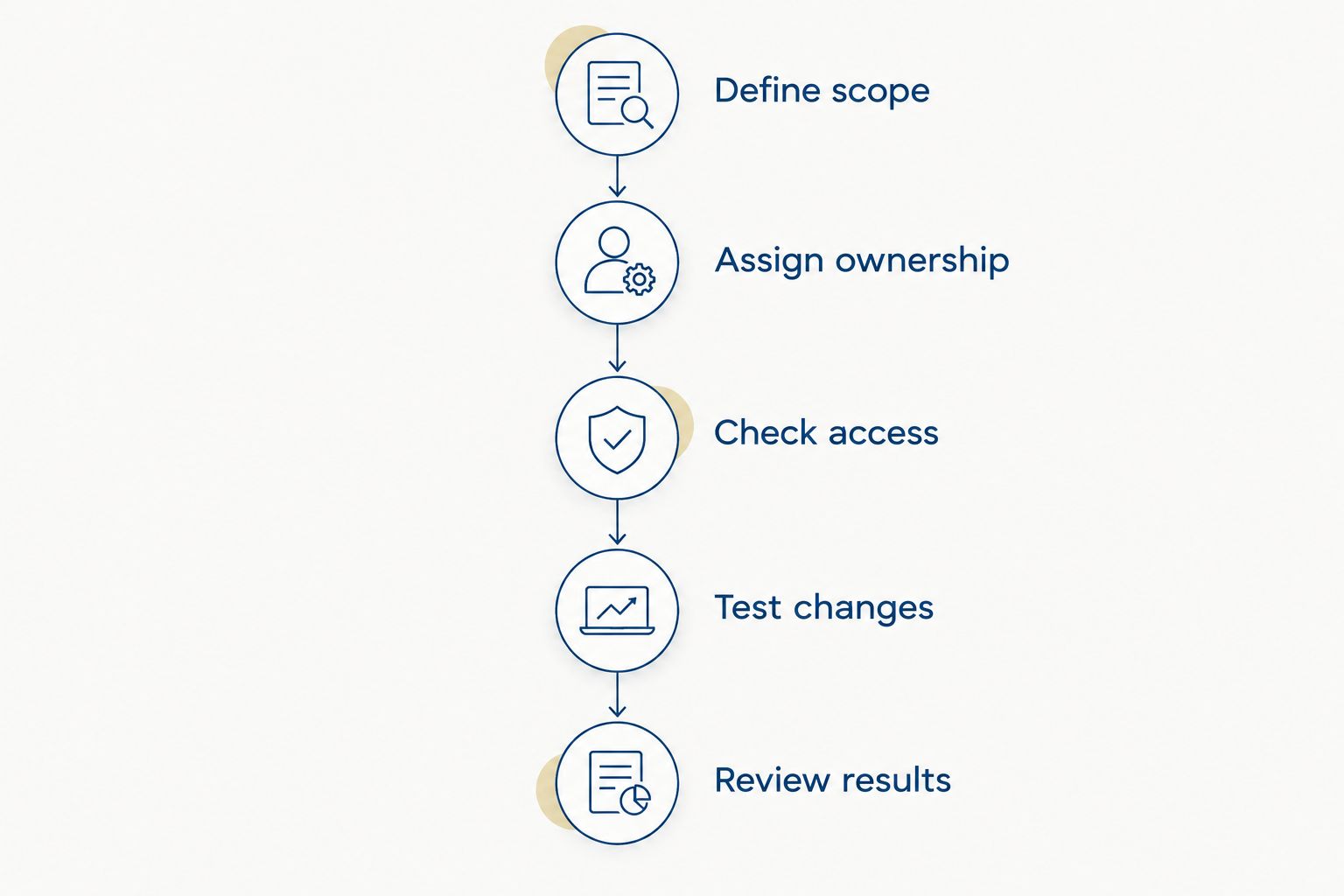
Use a 30-day planning window to establish a manageable first scope. This is a recommended planning period, not a deployment guarantee; the work depends on your environment and approvals.
- Define scope: Select 1 recurring workflow, such as onboarding, access review, or device enrollment. Write down its starting condition and expected outcome.
- Assign ownership: Name 2 responsible people: a primary owner and a backup. Separate technical execution from business approval when the workflow requires both.
- Check access: Confirm the required subscription entitlements and administrative permissions before configuring the workflow.
- Test changes: Use a limited, approved scope. Document the result and the steps needed to reverse an unwanted change.
- Review results: Check whether the owner can complete the workflow consistently and whether exceptions have a clear route.
The sequence matters. You define the work and its owner before changing configuration, then review the result before expanding the scope.
Your internal team should retain clear decision rights even when outside support handles part of the delivery. IT Core's co-managed IT support is intended to strengthen internal teams, not replace accountability with another handoff.
Which Microsoft 365 management tools should you choose?
Choose Microsoft 365 admin center as the default, then add the tool that matches your next unresolved responsibility. Use Microsoft Entra admin center for identity, Microsoft Intune admin center for endpoints, Microsoft Defender portal for security response, and Microsoft Purview portal for information governance.
Add Microsoft PowerShell when the manual workflow is understood and ready for repetition. For your 2026 plan, choose the smallest scope your team can own, test, and maintain. That is a clearer decision than selecting the tool with the longest capability list.
FAQ
What's the best Microsoft 365 management tool for an internal IT team?
Microsoft 365 admin center is the best default starting point for everyday tenant administration. Use specialized admin centers when the responsibility involves identity, devices, security, or information governance.
Is Microsoft Entra admin center better than Microsoft 365 admin center?
Microsoft Entra admin center is better suited to identity and access work, not general tenant administration. Microsoft 365 admin center remains the starting point for routine user, license, and organization administration.
Do I need Microsoft Intune to manage Microsoft 365 users?
Microsoft Intune is not required for routine Microsoft 365 user administration. Intune addresses device and application management, while user and identity tasks belong in the relevant tenant and identity interfaces.
Does Microsoft Defender portal replace Microsoft Purview portal?
Microsoft Defender portal does not replace Microsoft Purview portal. Defender supports security investigation and response, while Purview supports information protection, governance, and compliance-related workflows.
Can PowerShell replace all the Microsoft admin centers?
PowerShell is not a universal replacement for Microsoft admin centers. Use supported modules for repeatable administrative work and retain the interfaces needed for investigation, configuration review, and service visibility.
How do I check whether my subscription includes a management feature?
Check your organization's subscription entitlements against the requirements for the specific feature. Access to an administrative portal does not establish access to every capability inside it.
Should a small business use every Microsoft 365 management tool?
A small business should select tools around defined responsibilities rather than adopt every management interface. Start with everyday administration, then address specific identity, device, security, or governance needs.
When should an internal IT team bring in outside support?
Bring in outside support when a defined responsibility exceeds your team's available capacity or expertise. Keep approval rights, escalation paths, and technical ownership explicit so the support strengthens the internal team.
One last thing
Before adding a management tool, ask who owns the exception. Routine requests are only part of administration; unusual access needs, failed enrollments, and policy conflicts still need decisions.
If your team can name that person and explain the escalation route, you have a sound starting point. If it cannot, fix ownership before expanding the toolset.