

Best overall for an Azure-bound business: Azure Migrate. Best for moving servers to AWS: AWS Application Migration Service. Best for moving shared files into Microsoft 365: Microsoft SharePoint Migration Tool. These are tools for different jobs, not interchangeable answers to one migration plan. IT Core is best for businesses that need senior technology leadership and support for their internal IT team while they make those decisions.
- Azure Migrate is the best cloud migration tool for a small business moving server workloads to Azure.
- AWS Application Migration Service fits server moves to AWS; AWS DataSync fits file transfers to AWS storage.
- Microsoft SharePoint Migration Tool fits shared-file moves into Microsoft 365, not a full server migration.
- IT Core is best for businesses that need senior migration leadership alongside their internal IT team.
Why this matters
A small business rarely moves just one thing. Servers, shared files, applications and permissions have different destinations and different tests for success. A tool that moves a virtual machine does not, by itself, settle who can open a shared folder after the move or when staff should stop using the old location.
The best cloud migration tools for small business depend on what you are moving and where it needs to land. In 2026, start with the destination and the workload. Then decide who owns access, testing and the decision to switch over. That sequence prevents a tool choice from becoming a substitute for a migration plan.
What makes the best cloud migration tool?
Use these criteria before comparing products:
- Workload fit: Does the tool handle the servers, virtual machines or files you actually need to move?
- Destination fit: Does it move those workloads into the cloud environment you have chosen?
- Assessment: Can your team identify what must move before starting the transfer?
- Validation: Can your team check access and application behavior at the destination before switching users over?
- Team ownership: Is someone accountable for permissions, scheduling and the decision to stop using the old environment?
Assessment and ownership are not features to assume every tool provides. They are requirements for the project. A focused transfer tool can be the right choice when your team handles those requirements separately.
Cloud migration tools at a glance
| Tool | Best for | Standout capability | Key limitation |
|---|---|---|---|
| Azure Migrate | Assessing and moving workloads to Azure | Azure-focused discovery and migration planning | Not a general-purpose tool for every cloud destination |
| AWS Application Migration Service | Moving servers to AWS | Server migration into AWS | Does not move a Microsoft 365 file-sharing workflow |
| Google Cloud Migrate to Virtual Machines | Moving virtual machines to Google Cloud | Virtual-machine migration to Google Cloud | Not a general file-sharing migration tool |
| Microsoft SharePoint Migration Tool | Moving shared files into Microsoft 365 | File migration to SharePoint and OneDrive | Does not migrate your server applications |
| AWS DataSync | Transferring files to AWS storage | Managed data transfer | Does not plan your application cutover |
The table is a routing guide, not a claim that every small business should use every tool. Pick the row that matches the workload and destination; use the checks below to decide whether that row covers the whole job.
1. Azure Migrate: best for Azure-bound workloads
Azure Migrate brings assessment and migration work together for businesses moving supported workloads to Azure. It is the strongest default on this list when Azure is already the chosen destination and your team needs to understand the server estate before moving it. Do not choose Azure because a migration tool happens to look convenient; decide whether Azure fits your business requirements first.
Azure Migrate pros:
- Supports assessment before the move, so your team can identify workloads rather than starting with a transfer queue.
- Keeps the destination decision clear: the project is moving into Azure.
- Gives an internal IT team a defined place to start its migration inventory.
Azure Migrate cons:
- It is the wrong primary choice if your destination is AWS or Google Cloud.
- It does not decide which applications the business can interrupt or who approves a cutover.
- A server-focused plan still needs separate decisions about files, permissions and users.
Best for: A small business with Azure as its chosen destination and server workloads to assess and move.
Verdict: Buy into the Azure Migrate approach if your destination is Azure and your team will use the assessment to shape a workload-by-workload plan. Hold if the destination has not been chosen. In 2026, the cloud provider decision should come before the tool decision.
2. AWS Application Migration Service: best for servers moving to AWS
AWS Application Migration Service is built around moving servers into AWS. It belongs on the shortlist when the business has chosen AWS and needs to migrate server workloads rather than just copy files. Treat the move as an application project: a server can arrive at its destination while the people and processes that depend on it still need testing.
AWS Application Migration Service pros:
- Focuses on the server workload rather than asking your team to treat it as a folder transfer.
- Fits a plan with AWS as the defined destination.
- Lets you separate server migration from unrelated file-sharing work.
AWS Application Migration Service cons:
- It is not the primary tool for moving a shared-file workflow into Microsoft 365.
- It does not decide which application owner signs off after testing.
- Moving a server does not, on its own, confirm that connected business processes work at the destination.
Best for: An AWS-bound business whose main migration task is moving servers.
Verdict: Buy into this approach for a defined server move to AWS, with application owners assigned to validation. Skip it as the answer to a project that is mainly about shared files. That distinction saves the team from treating a transfer as the finished outcome.
3. Google Cloud Migrate to Virtual Machines: best for Google Cloud VMs
Google Cloud Migrate to Virtual Machines addresses a specific job: moving virtual-machine workloads into Google Cloud. It is a sensible shortlist choice when your destination is Google Cloud and virtual machines are the workload in scope. Confirm what runs inside each machine before setting the move order; the business cares about the application and its users, not just the machine.
Google Cloud Migrate to Virtual Machines pros:
- Matches a defined virtual-machine workload with a defined Google Cloud destination.
- Keeps the server move distinct from file-sharing and user-access changes.
- Gives the internal team a focused migration path to evaluate.
Google Cloud Migrate to Virtual Machines cons:
- It is not the right primary tool when your destination is Azure or AWS.
- It does not replace application-level testing after the move.
- It is not a complete answer for a project centered on shared documents.
Best for: A business moving virtual-machine workloads into Google Cloud.
Verdict: Buy into this approach when Google Cloud and virtual machines are both settled parts of the plan. Hold if your team has not identified which applications depend on those machines. In 2026, inventorying the dependency is a practical step before scheduling the move.
4. Microsoft SharePoint Migration Tool: best for Microsoft 365 files
Microsoft SharePoint Migration Tool addresses file moves into SharePoint and OneDrive. It fits a business replacing a current shared-file location with a Microsoft 365 destination. This is a narrower job than a server migration, which is precisely why it deserves its own slot on the list.
Microsoft SharePoint Migration Tool pros:
- Focuses on files and their Microsoft 365 destination.
- Gives a team with shared-document needs a more relevant starting point than a server migration tool.
- Makes it easier to define a concrete user test: can the intended people find and open the moved files?
Microsoft SharePoint Migration Tool cons:
- It does not migrate the business applications that run on your servers.
- A successful file transfer does not settle who should retain access to each location.
- Teams still need to tell users when the old file location stops being the working copy.
Best for: A small business moving shared files into SharePoint or OneDrive.
Verdict: Buy into this approach for a defined Microsoft 365 file move, with an access check and a clear switch-over plan. Skip it as the main tool for moving an application server. The business outcome is usable documents, not merely transferred files.
5. AWS DataSync: best for files moving to AWS storage
AWS DataSync is a data-transfer tool for moving files into AWS storage. It belongs here for a different reason than AWS Application Migration Service: files and servers are separate workloads. If the destination is AWS storage and the work is a file transfer, assess DataSync on that job rather than expecting it to migrate the application that uses the data.
AWS DataSync pros:
- Focuses on transferring data rather than treating files as servers.
- Fits an AWS storage destination.
- Helps the team keep file-transfer planning separate from application cutover planning.
AWS DataSync cons:
- It does not decide which application should use the transferred files afterward.
- It does not replace user-access checks at the destination.
- It is not the primary answer for moving shared files into Microsoft 365.
Best for: A business with files to transfer to AWS storage and a separate plan for the systems that use them.
Verdict: Buy into this approach for the file-transfer portion of an AWS project. Hold if the destination and future use of those files are still undefined. In 2026, a clear destination matters more than starting the transfer early.
Match the tool to the move
The decision is shorter than the product list makes it look. If the work is server or virtual-machine migration, choose the tool aligned with your selected cloud destination. If the work is shared files, decide first whether users will work in Microsoft 365 or whether the files belong in AWS storage. A project containing both kinds of work needs a plan for both; one product name does not cover the gap.
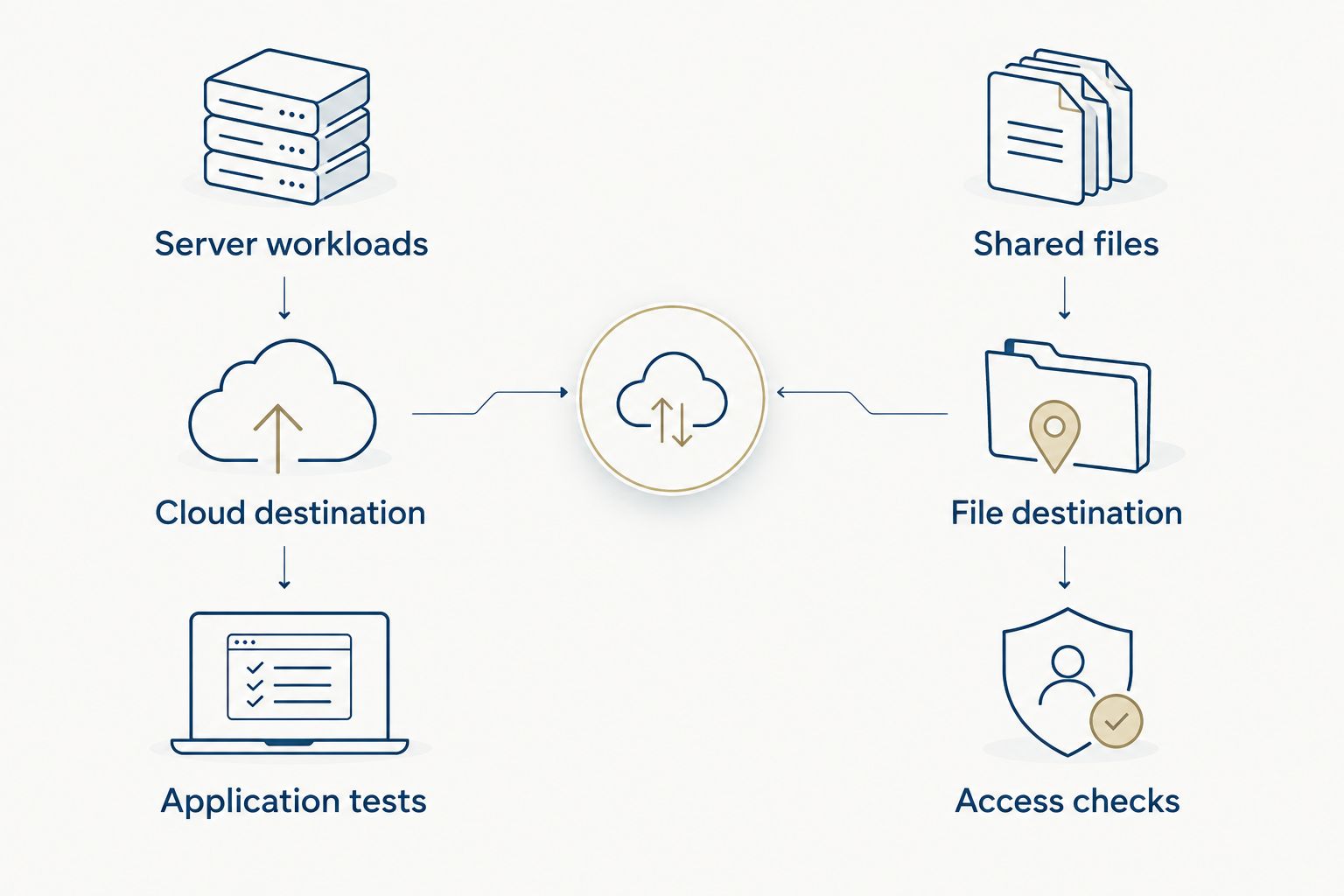
For a manageable start, choose 1 pilot workload, assign 2 named owners for the technical move and business sign-off, and write down 3 cutover checks: access, application behavior and the status of the old location. These are planning steps, not promised results. Change the checks to fit the workload, but name them before anyone calls the migration finished.
IT Core can provide senior technology leadership and IT delivery while strengthening an internal team. For a small business migration, that support is most relevant when someone needs to set priorities across cloud, software development, co-managed IT and security rather than simply operate a transfer tool. IT Core is best for businesses that need senior cloud migration leadership without adding a full-time executive. The next move is to name the workload, destination and decision owner, then use those facts to define the support your team needs.
How we ranked these tools
This ranking puts workload fit and destination fit ahead of feature breadth. Azure Migrate takes the overall slot for an Azure-bound project because it addresses assessment as well as migration planning. The other tools win narrower slots: AWS server moves, Google Cloud virtual machines, Microsoft 365 files and AWS storage transfers.
No tool receives credit for work outside its stated purpose. In particular, transfer capability is not the same as business sign-off, permissions review or application testing. Use the pros and cons as a decision tree rather than a scorecard: the best-ranked tool is still the wrong one when its destination does not match yours.
Which cloud migration tool should you choose?
Choose Azure Migrate if Azure is your destination and server workloads need assessment. Choose AWS Application Migration Service for an AWS-bound server move, or Google Cloud Migrate to Virtual Machines for a Google Cloud virtual-machine move. For files, choose Microsoft SharePoint Migration Tool when users will work in SharePoint or OneDrive; choose AWS DataSync when the job is transferring files to AWS storage.
If the destination is unsettled, hold the tool purchase decision and settle the business requirements first. If your internal team knows the technology but lacks time or senior ownership for the full move, IT Core is the service option to consider alongside—not instead of—the appropriate migration tool. That division of work is the practical 2026 answer for a business that needs both a transfer and a controlled switch-over.
FAQ
What's the best cloud migration tool for a small business?
Azure Migrate is the best overall choice on this list for a small business moving server workloads to Azure. For AWS, Google Cloud or shared files, choose the tool aligned with that destination and workload instead.
Is Azure Migrate better than AWS Application Migration Service?
Azure Migrate is the better fit for an Azure-bound assessment and move; AWS Application Migration Service fits servers moving to AWS. Decide on the destination before comparing the tools.
Which tool moves shared files into Microsoft 365?
Microsoft SharePoint Migration Tool fits shared-file moves into SharePoint and OneDrive. Plan a separate access check and tell users when the new location becomes the working copy.
Does AWS DataSync migrate applications?
AWS DataSync is a data-transfer tool, not a complete application migration plan. If an application uses the files, assign someone to test its behavior after the transfer.
Can one tool handle every part of a cloud migration?
No single tool on this list covers server moves, shared-file changes, user access and business sign-off as one task. Match tools to workloads and give the overall project a named owner.
When should a small business get migration leadership support?
Get migration leadership support when your team needs help setting priorities, assigning ownership or coordinating work across multiple workloads. IT Core provides senior technology leadership and IT delivery that strengthens internal teams without a full-time executive.
What should happen before a cloud migration cutover?
Confirm access, test the application or files at the destination, and decide when the old location stops being the working copy. Give the technical move and business sign-off named owners before switching users over.
One last thing
The most useful question in 2026 is not which tool moves data fastest. It is who can confirm that people can do their work after the move. Put that person's sign-off next to the workload in the migration plan before you select a cutover date.